Group & Sort the Find Grid Records
You can sort the order of the records returned from Using the Find Function by up to three different columns / fields.
- From The Initial Portal of Church Windows choose Membership
- Click The People File button
- Using the Find Function, enter your desired search criteria and click Find
- This will open The Find Grid
- Once there, there are two ways to sort records on The Find Grid list of results:
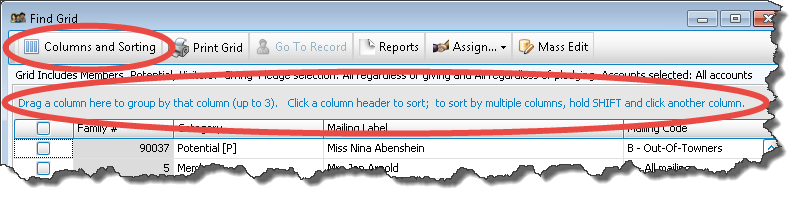
 Columns and Sorting
- Click the Columns and Sorting button at the top of The Find Grid.
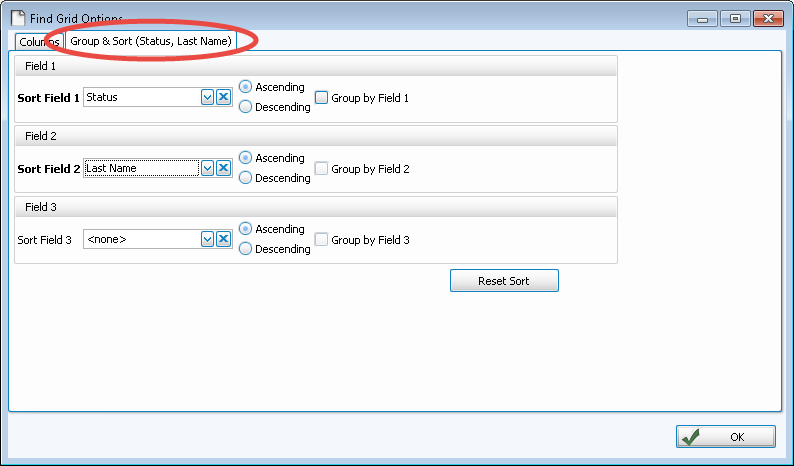
- The Find Grid Options screen will appear.
- Then click the Group & Sort tab. Use this tab to sort the results by up to three columns (sort fields):
- Sort Fields:
Choose the name of the field(s) by which to sort the grid:- The field chosen in Sort Field 1 will sort the entire list by that field first.
- Then, choose a field from Sort Field 2 if you want sort the list further within the order chosen in Sort Field 1.
- To sort the list in an additional order within the order chosen in Sort Field 2, choose a field from Sort Field 3.
For example, you could choose Zip Code for Sort Field 1, then within each Zip Code you could make Sort Field 2Status Code, then within each Status Code grouping you could sort by Name for Sort Field 3.
- Ascending & Descending:
Choose the order in which you want the contents to be sorted:- Ascending — lowest to highest / alphabetical
- Descending — highest to lowest / reverse alphabetical
- Group by Field #:
Group the contents of the report by the item selected in that sort field. - Reset Sort
Click this button to change the selections back to their original, default state. - Click OK to save your changes and exit this dialog box.
- Or, click the red X in the top right corner
to cancel your changes and exit this dialog box.
OR
Drag and DropOn the top of the Find Grid screen, there is an area used for sorting. In blue text, this area is labeled:
"Drag a column here to group by that column (up to three). Click a column header to sort; to sort by multiple columns, hold SHIFT and click another column."
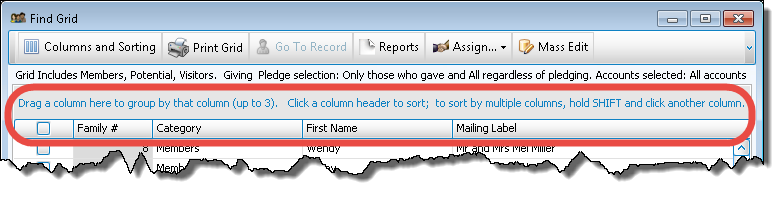
- Left click and hold down the mouse button on the column heading that you would like to group by, then drag the column up to the sort area.
- Let go of the mouse once the column is in the sort area:
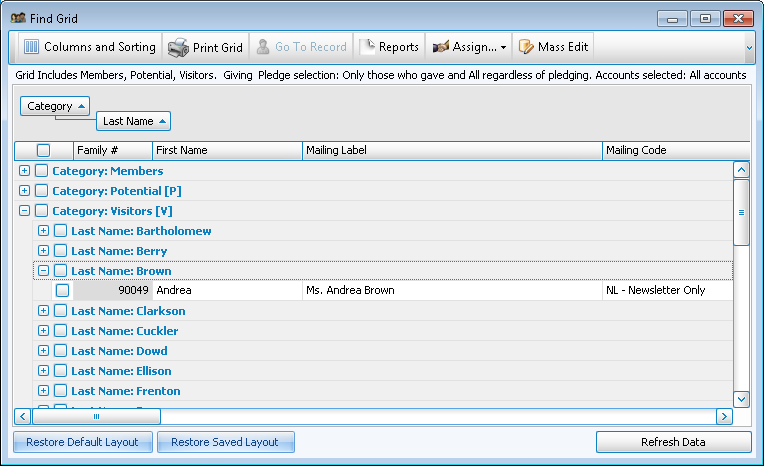
- When fields, such as Family Categories, are sorted and grouped, as in the image above, you can choose to see more or limit the information you are viewing.
- Click the
 expand button to the left of each row to view details (when expanded it will become a
  collapse button).
If you wish to alter the actual information that you're seeing about each family or individual on The Find Grid you can also Organize the Find Grid Columns / Fields.
